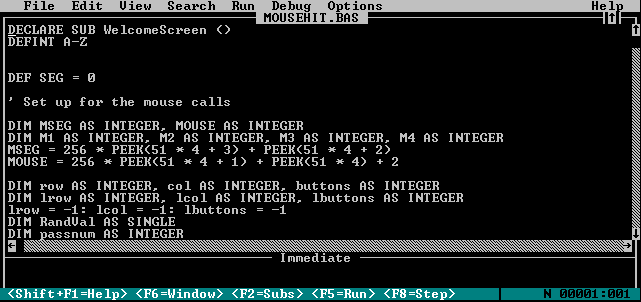
This first screen shows the MouseHit program loaded into the QBASIC environment:
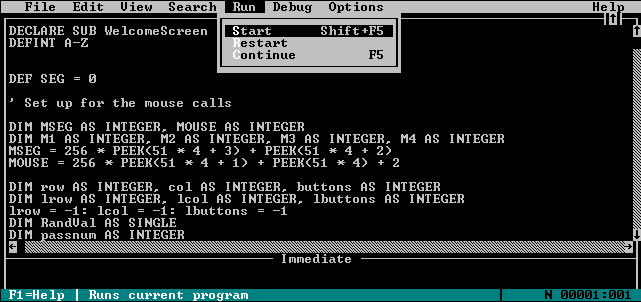
Run the program by clicking the "Run" menu option followed by the "Start" submenu option:
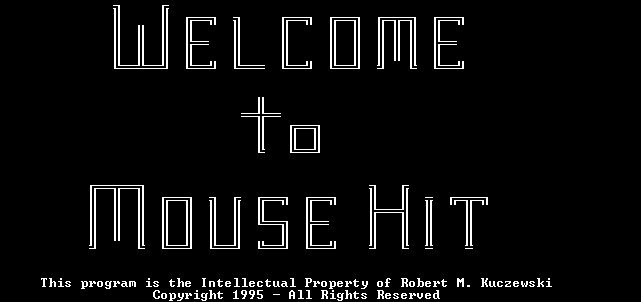
This should bring up the following welcome screen:
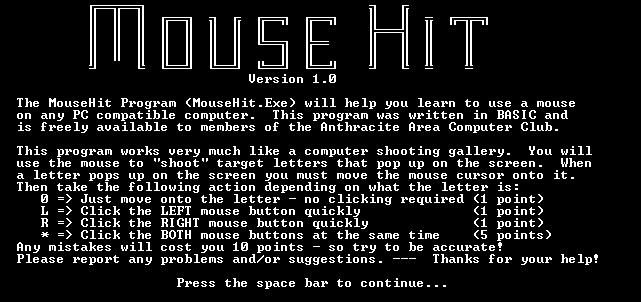
After about 10 seconds, the previous welcome screen should be replaced with the following instruction screen. Read the instructions and then press the space bar once when you're ready to continue.
The MouseHit program starts by giving you a few practice screens. It starts by letting you practice hitting a "0". Just move the mouse onto the "0" and you should get a point.
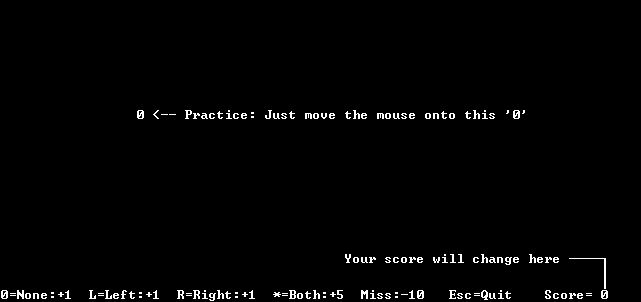
The second practice screen shows you the letter "L" for "Left" mouse button. Move on to the "L" and click the left mouse button once quickly. You should get another point.
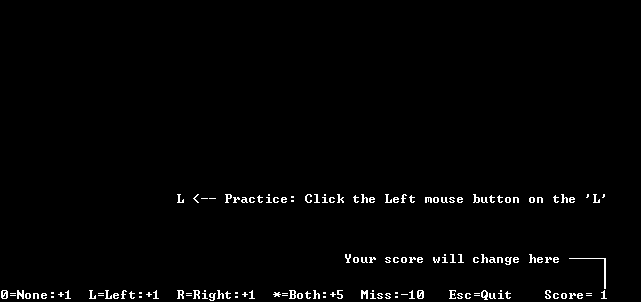
The third practice screen shows you the letter "R" for "Right" mouse button. Move on to the "R" and click the right mouse button once quickly. You should get another point. This example screen shows a score of -8 because you can lose points for holding the button too long or missing the target.
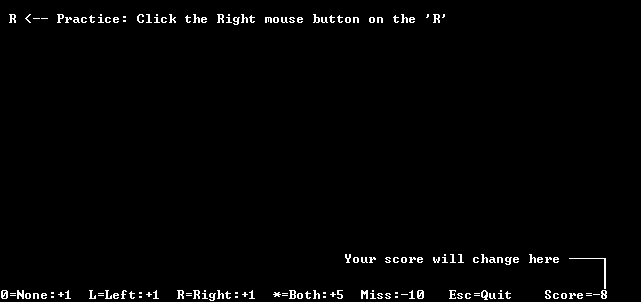
The fourth practice screen shows you the asterisk (*) which requires both mouse buttons. Move on to the "*" and click both mouse buttons together at the same time. This is the most difficult so you should get 5 points.
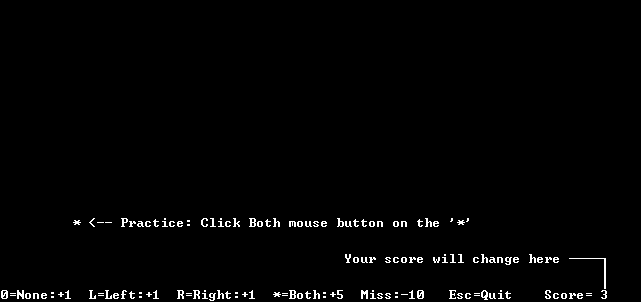
At this point the practice screens are done and the 0, L, R, and * letters will appear randomly on the screen. Just move onto the letter and click the appropriate buttons to increase your score.
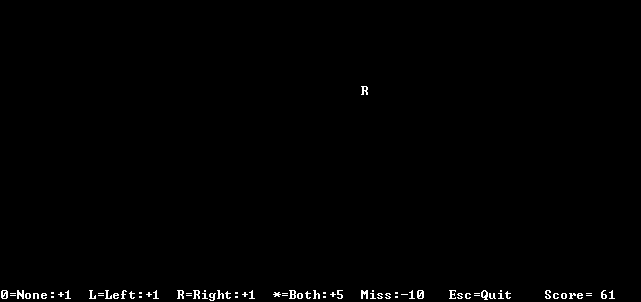
When you're done, you can press the escape key [ESC] to end the program. It will print your final score and ask you to press any key to continue ending the program.
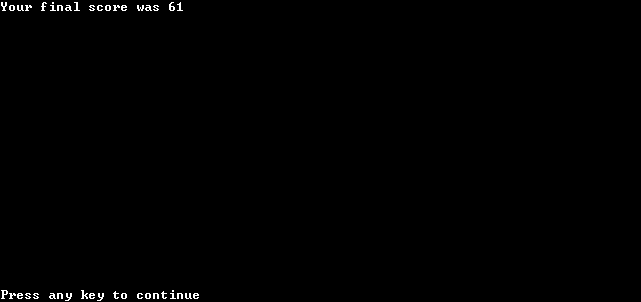
After pressing any key you should end up back in QBASIC. Click on the "File" menu item and the "Exit" submenu item to end (or exit) QBASIC.